
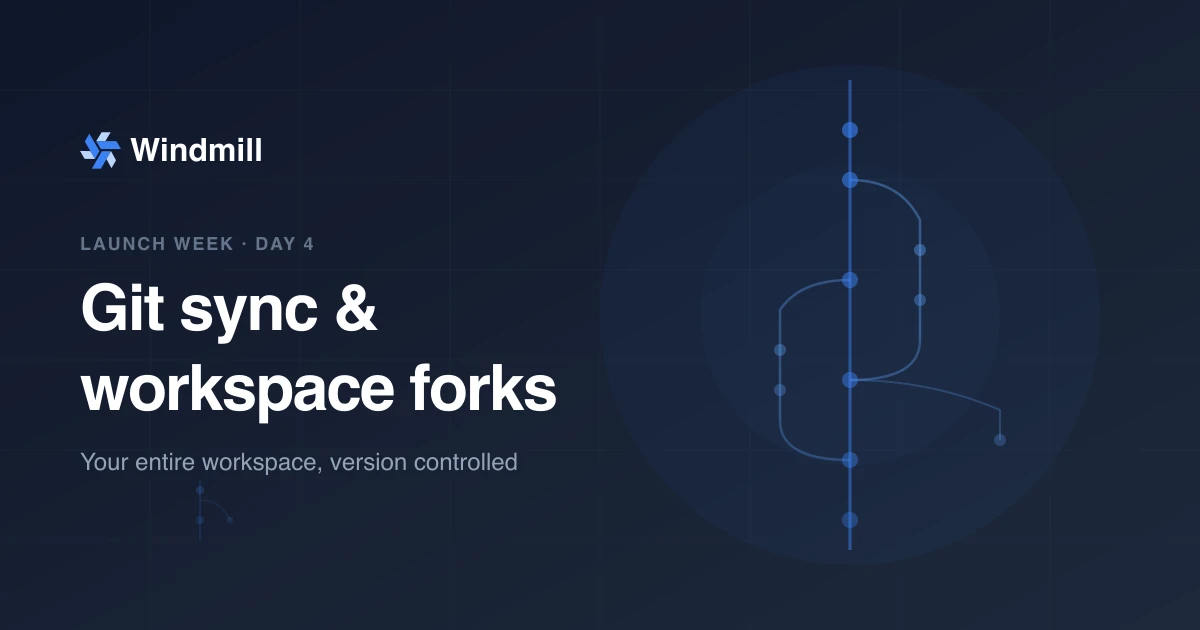
Day 4 of Windmill launch week. We have reworked Git sync and introduced workspace forks, giving you a full staging-to-production workflow inside Windmill.
The problem
Windmill workspaces are live environments. You deploy a script, and it runs in production immediately. That works for small teams iterating fast, but as your team grows you need review, staging, and rollback.
Teams end up building custom CI/CD pipelines around Windmill's CLI sync, managing branches manually, and writing their own merge logic. The deploy-to-prod path was functional but required too much glue.
Git sync: automatic, bidirectional
Every time you deploy an item in Windmill, it automatically commits and pushes to your configured Git repository. Pull from Git to update your workspace. Supports GitHub, GitLab, Bitbucket, and Azure DevOps.
# wmill.yaml
sync:
  branch: main
  path_filters:
    include:
      - "f/production/**"
    exclude:
      - "f/experiments/**"
  type_filters:
    - scripts
    - flows
    - apps
    - resources
    - variables
    - schedules
Configuration lives in wmill.yaml at the repository root. Path filters let you sync only what matters. Type filters control which resource types are included.
Workspace forks: branch your workspace
Workspace forks let you create an independent copy of a workspace for feature development. Changes in the fork do not affect the parent until you merge them back.
When Git sync is enabled, creating a fork automatically creates a corresponding Git branch (wm-fork/<parent-branch>/<fork-name>). You get parallel development with full version control.
Merge workflow
Three ways to bring changes back:
- Deploy UI: deploy individual items from the fork to the parent workspace directly from the Windmill UI.
- Merge UI: merge all changes at once with conflict detection, no Git sync required.
- Git merge: use your preferred Git workflow (PRs, code review) to merge the fork branch.
Why we built it this way
Three design choices drove the architecture:
Workspace-level branching. Forks operate at the workspace level, not the file level. When you fork, you get a complete copy of all scripts, flows, apps, resources, and variables. This means you can test changes end-to-end in an isolated environment before merging.
Git as the source of truth. Git sync is bidirectional but Git always wins. If you need to roll back, reset the branch. If you need to audit, read the commit history. Windmill does not replace your Git workflow; it plugs into it.
Multiple deployment paths. Not every team needs the same workflow. Small teams can use the deploy UI. Growing teams can use workspace forks. Enterprise teams can use the full Git promotion workflow with CI/CD and cross-instance deployment.
Deployment options
| Workflow | Setup | Best for |
|---|---|---|
| Draft and deploy | Single workspace | Small teams, fast iteration |
| Workspace forks | Fork + merge | Teams that need staging |
| Git promotion | Git sync + CI/CD + PRs | Enterprise, cross-instance |
| Deploy to prod UI | Multi-workspace | Cloud/EE, quick deployments |
Getting started
Git sync:
- Create a Git repository.
- Go to workspace settings, then Git sync.
- Configure authentication (GitHub App, PAT, or GitHub Enterprise App).
- Deploy an item and check your repo for the commit.
Workspace forks:
- Enable Git sync (recommended but optional).
- Create a fork from the workspace settings.
- Make changes in the fork.
- Merge back using the deploy UI, merge UI, or Git.
What's next
Tomorrow is Day 5: Workflow-as-code. Define complex workflows entirely in code with the next generation of our SDK. Follow along.

You can self-host Windmill using a
docker compose up, or go with the cloud app.